 Simple
How to perform staged firmware rollouts to ESP32 fleets
Release ESP32 firmware in stages with stable canary cohorts. Choose an audience, start at 10%, watch confirmations and rollbacks, then widen the rollout.
A firmware build passes CI, works on the board on your desk, and goes out to every device. Then the first customer with a slightly different Wi-Fi setup finds the bug you missed.
That is an expensive way to learn something you could have learned from a small release.
The GitHub Actions walkthrough covers getting a build from source control into SimpleOTA. This post picks up at the next decision: who should receive it first?
I would start with a small cohort, give it time to do real work, and widen the release only when there is a reason to trust it. SimpleOTA’s canary deployments give you the controls for that. You still decide what counts as a good release.
What you will do
You will take one firmware build through a 10% → 25% → 100% rollout, keeping the same deployment throughout. Along the way, you will choose the audience, read the progress counters, and set a rollback threshold that can pause the release for you.
Jump to: choose the audience · create the canary · stable cohorts · watch progress · ramp · pause and recover
You need a project with devices checking in, a firmware build ready to deploy, and the project in Advanced mode. The mode switch is on the top right of the project page. Advanced mode gives you explicit deployments, groups, channels, and rollout controls. Simple mode’s upload flow starts a 100% deployment on the project’s default channel automatically, so switch before uploading the build you want to stage.
If you are still getting your first board online, start with the Arduino guide or the ESP-IDF component guide.
The dashboard screenshots below use a local demo project with fictional devices and simulated status reports.
1. Choose the audience
Before choosing a percentage, decide which devices the release is for.
A group is a set of devices you want to manage together: a customer site,
a hardware batch, or the boards on your test bench. A device can belong to
several groups. A channel is a release track, such as stable, beta, or
internal. Each device belongs to at most one channel.
A deployment can target groups, channels, both, or neither:
| Deployment targets | Audience |
|---|---|
Group Pilot sites |
Devices in that group, regardless of channel |
Channel stable |
Devices on that channel, regardless of group |
Group Pilot sites and channel stable |
Devices that satisfy both |
| Neither | Every active device in the project |
Several selected groups form a union: membership in any of them is enough. Several selected channels work the same way. The group and channel filters then intersect.
That last detail matters. Selecting a group and a channel narrows the audience to their overlap. Leaving both blank opens the audience to the project.
For this walkthrough, I am using a stable channel with 100 active ESP32
devices. They all match the firmware’s compatibility fields and are running
build 41. The new release is build 42.
Targeting and compatibility do separate jobs. Putting an ESP32-C3 in the right group does not make an ESP32-S3 image suitable for it. SimpleOTA checks the artifact’s framework and compatibility constraints, including chip, board, hardware revision, partition profile, NVS schema, and security mode, before selecting an offer. Fill in those fields deliberately when you upload.
2. Create a 10% canary
Upload the application binary in Advanced mode, then open Deployments and create a new deployment.
- Select the firmware build you just uploaded.
- Choose Canary and set Rollout % to 10.
- Under Device targeting, click Edit and select the intended groups
or channels. Here, that is the
stablechannel. - Keep automatic pause on rollback enabled, with a threshold of 1.
- Add a note explaining the change and what you want to observe.
- Create the deployment, review its details, and click Start.
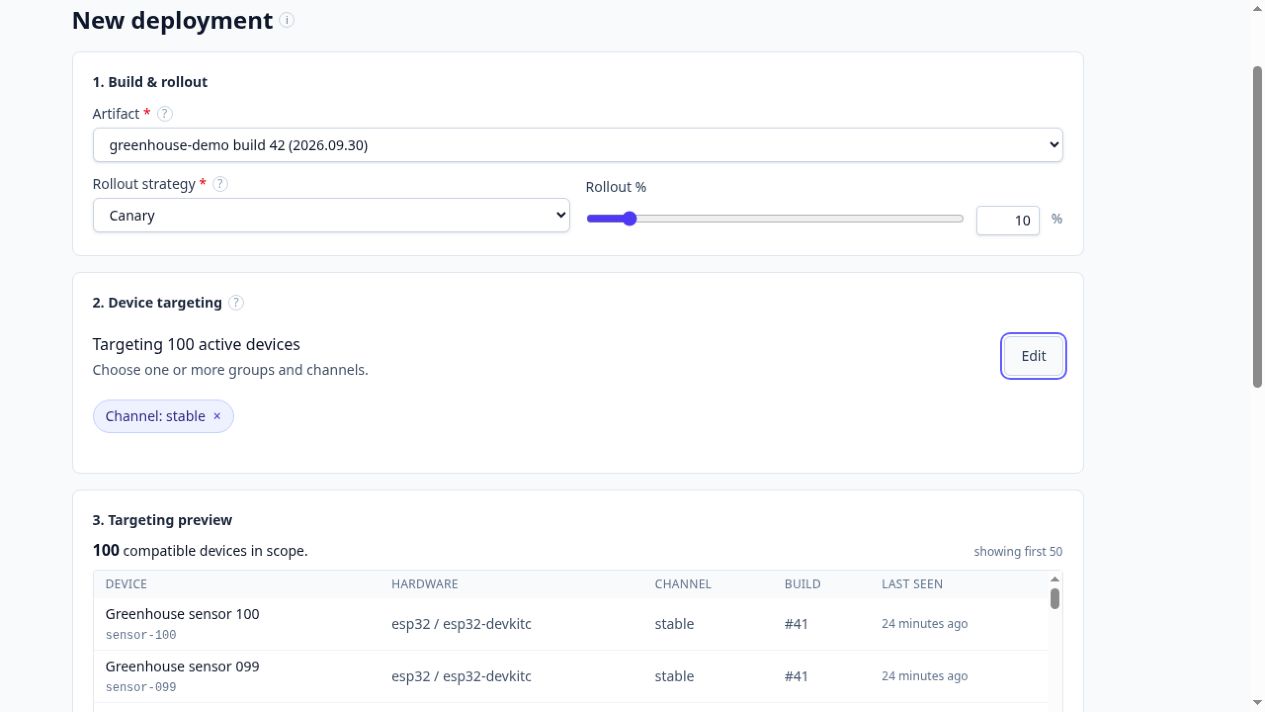 Choose the audience and percentage before starting. Creating the deployment
leaves it in Draft until you click Start.
Choose the audience and percentage before starting. Creating the deployment
leaves it in Draft until you click Start.
If neither targeting filter is set, starting a deployment for a project with two or more devices asks you to confirm the whole-project audience. Read that prompt even if the percentage is small: those are the devices you will expose as you ramp.
The form’s eligible-device preview helps catch an empty audience or a compatibility mismatch. Its canary count is an estimate. The actual cohort comes from the hash described below.
Why the cohort stays put
A canary is useful only if the first devices stay the first devices.
If the server chose a fresh random 10% on every check-in, repeated polling would eventually expose far more than 10% of the fleet. It would also make the observation window meaningless: the test population would keep changing.
SimpleOTA gives each device a stable bucket for each deployment. It hashes the deployment’s fixed seed together with the device’s internal UUID, then maps the result into 10,000 buckets. At 10%, buckets below 1,000 are included. At 25%, buckets below 2,500 are included. At 100%, every bucket is included.
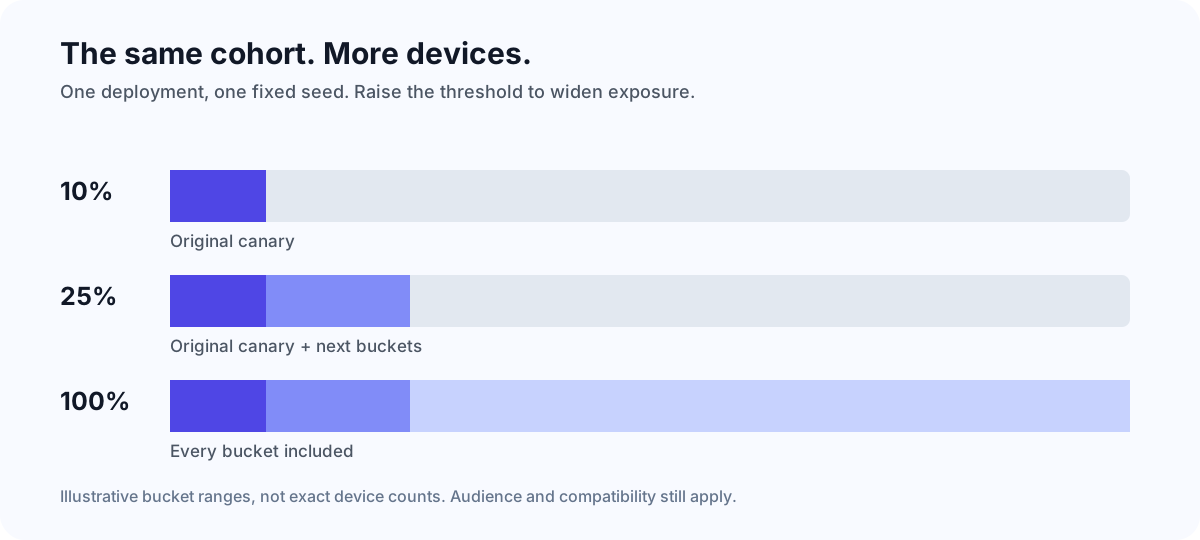 Illustrative bucket ranges. Ramping adds to the same cohort; it keeps the
devices already inside it.
Illustrative bucket ranges. Ramping adds to the same cohort; it keeps the
devices already inside it.
For example, a device in bucket 640 is included at all three stages. One in bucket 1,820 joins at 25%. One in bucket 8,300 waits until 100%. Repeated check-ins give each device the same answer while the deployment’s percentage and its eligibility stay the same.
10% is a threshold, not an exact headcount. A fleet of 100 devices might select eight or thirteen. A fleet of five might select none. For a small fleet, target a named test group if you need particular boards to receive the build first.
The seed belongs to the deployment. Creating another deployment generates a new seed and can select different devices, even for the same artifact. Use the existing deployment’s ramp controls when you want to expand the cohort you have been observing.
3. Watch confirmations and real behavior
Starting the deployment makes build 42 available to the selected devices on their next check-in. The fleet moves at its own polling intervals, so allow for sleeping devices and intermittent connections.
Open the deployment detail page. Its progress section refreshes every five seconds and shows the path from an offer to a reported outcome.
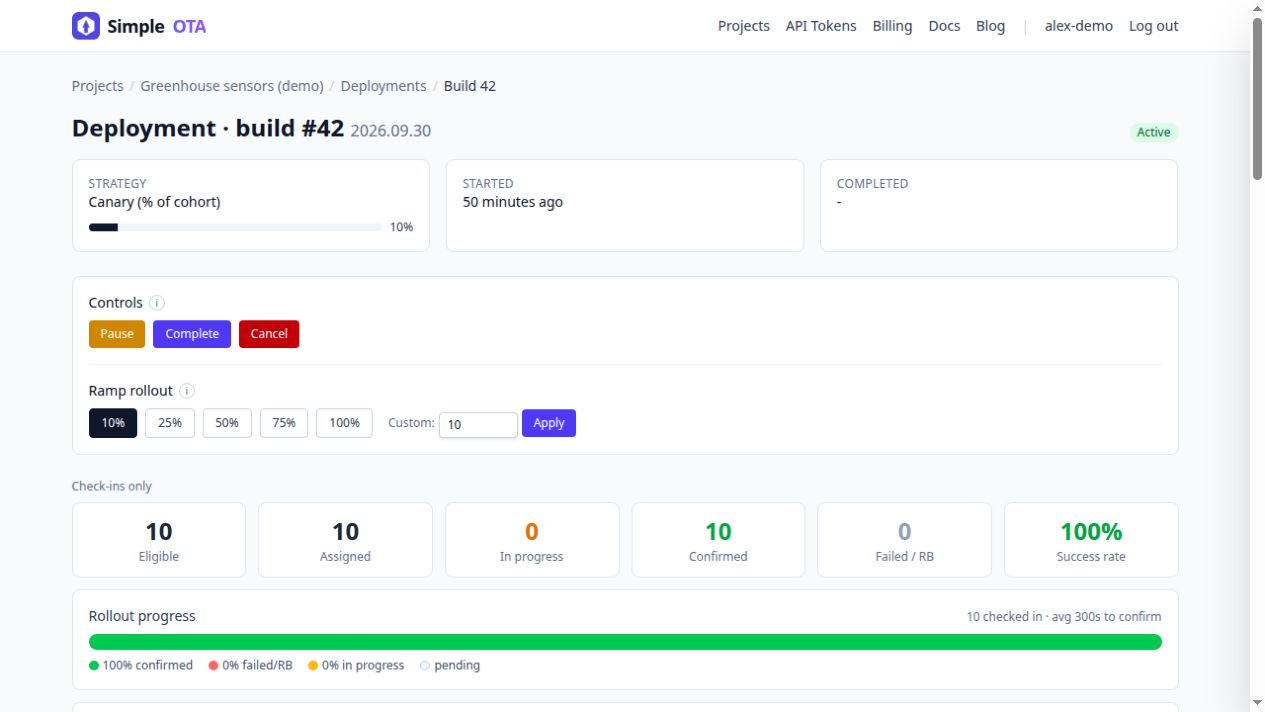 The percentage controls exposure. The counters show what devices have
reported back.
The percentage controls exposure. The counters show what devices have
reported back.
Pay attention to the Check-ins only label above the cards. These counts come from recorded deployment-device state, rather than a census of the whole audience. A device that has received no offer may appear as Expected in the device list without contributing to the progress cards.
| Counter | What it tells you |
|---|---|
| Eligible | Recorded device states marked eligible for this deployment |
| Assigned | Recorded states marked inside the rollout cohort |
| In progress | Assigned devices with an offer and no terminal outcome |
| Confirmed | Devices that reported confirmed |
| Failed / RB | Devices that reported failed or rolled_back |
| Success rate | Confirmed devices divided by confirmed plus failed/rolled-back devices |
A 100% success rate with two confirmed devices and eight still in progress means the two completed outcomes succeeded. It does not mean the whole canary finished. Read the counts alongside the percentage.
When a device fails, open its timeline and read the reason. A rejected signature, a failed download, and a trial image that rolls back need different investigations. The update funnel helps locate where progress stops, but devices can skip intermediate events, so a missing stage is not by itself proof of a fault.
Confirmation is also only as useful as the health gate behind it. Check the client’s confirmation configuration. If your product needs a sensor reading, a backend session, or persistent storage to work, make those part of the decision to accept a trial build.
I would also watch the product outside the OTA dashboard. Does it still report measurements? Does it reconnect after an ordinary network outage? Does the behavior you changed actually work?
There is no universal ten-minute observation window. Give a mains-powered controller enough time to run its normal work. Give a device that wakes once an hour enough wake cycles to reveal a regression. Choose the window before the release, when you are less tempted to rush past it.
4. Widen the same deployment
Once the first cohort has confirmed and behaved normally, click 25% under Ramp rollout on the same deployment.
The devices in the original 10% stay included. More devices become eligible for an offer as the threshold rises, and devices already on build 42 do not need to install it again. Build numbers determine update ordering; the version label is there for humans.
Repeat the observation before clicking 100%. The dashboard also offers 50% and 75% presets, plus a custom percentage. Use smaller steps when the release changes something difficult to recover from.
| Stage | Decision before moving on |
|---|---|
| 10% | The first cohort has confirmed, and the changed behavior works |
| 25% | The wider sample behaves normally across the conditions you care about |
| 100% | The release can reach every compatible device in the chosen audience |
Those are operator decisions. This walkthrough uses manual promotion: you inspect the evidence and choose the next percentage.
At 100%, keep the deployment Active while the remaining devices catch up. Complete stops it participating in update offers. Clicking Complete as soon as you reach 100% can leave offline devices without that deployment when they reconnect.
One more thing to check before starting: overlapping active deployments. If a device qualifies for several, SimpleOTA selects the highest build number among compatible builds whose cohorts include it. An active build 43 can therefore take precedence over your careful build 42 canary. Review the other active deployments when you want an isolated test.
5. Pause when the evidence changes
If the canary turns up a problem, click Pause. The deployment stops making new offers. Devices that already have a download URL or have started the update may still finish, and installed firmware stays installed.
Reducing the percentage is not a recovery mechanism. The ramp controls allow increases only. Pause to investigate; cancel when you want to end that deployment permanently.
Automatic pause gives you a second way to stop exposure. With Auto-pause on rollback enabled and a threshold of 1, a reported rollback that brings the deployment’s rolled-back device count to one pauses an active deployment. The default threshold is one; you can change it in Rollback safety.
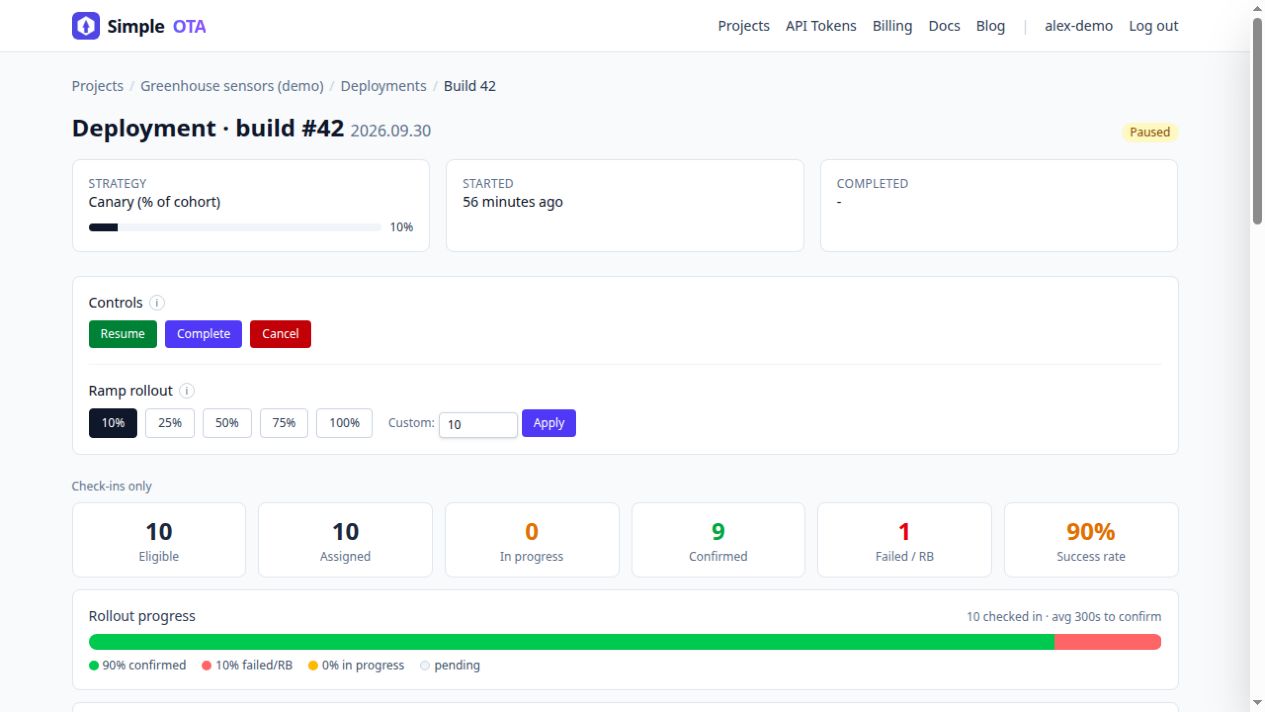 A reported rollback can pause the deployment. The device’s rollback and
the server’s pause are separate operations.
A reported rollback can pause the deployment. The device’s rollback and
the server’s pause are separate operations.
This relies on the device reporting rolled_back. A device that simply
goes silent gives the server no rollback event to act on. A failed report
also does not trigger this particular rule. Watch both failures and missing
progress instead of treating auto-pause as a substitute for observation.
The pause protects the remaining audience from new offers through this deployment. Recovery on an affected device depends on its firmware and bootloader setup. The ESP-IDF guide covers trial boots, health confirmation, and bootloader-supervised rollback.
If you need to restore known-good application code to devices already running build 42, publish that code as a new build, such as 43, and deploy it. Offering build 41 does not downgrade devices reporting build 42: SimpleOTA offers only builds newer than the device’s current build number. Test the recovery image against any persistent-data changes the failed release made, too.
A release routine you can repeat
The useful part of a staged rollout is the pause between decisions.
Choose the audience, start small, wait for confirmations and ordinary product behavior, then widen the same deployment and keep it active long enough for the rest of the fleet to check in.
For the next release, write the observation plan in the deployment’s notes before clicking Start: what changed, what a healthy device should do, how long you will watch, and what would make you stop. A percentage gives you room to find a bug. That plan tells you what to look for.
Create a SimpleOTA project or open an existing project’s Deployments page and make the next release a canary.